
iPad guide
How to watch Jellyfin offline on iPad
Jellavio can stream from one Jellyfin account for free. A one-time Jellavio Pro purchase lets you save compatible movies and episodes on your iPad and play them offline.
Connect to your Jellyfin server
Install Jellavio for iPad. Enter the server’s address, including its port and any reverse-proxy path if needed. Sign in with your Jellyfin account or use Quick Connect if your server offers it. For downloads, your Jellyfin account needs permission to download media.
Download a movie or episode
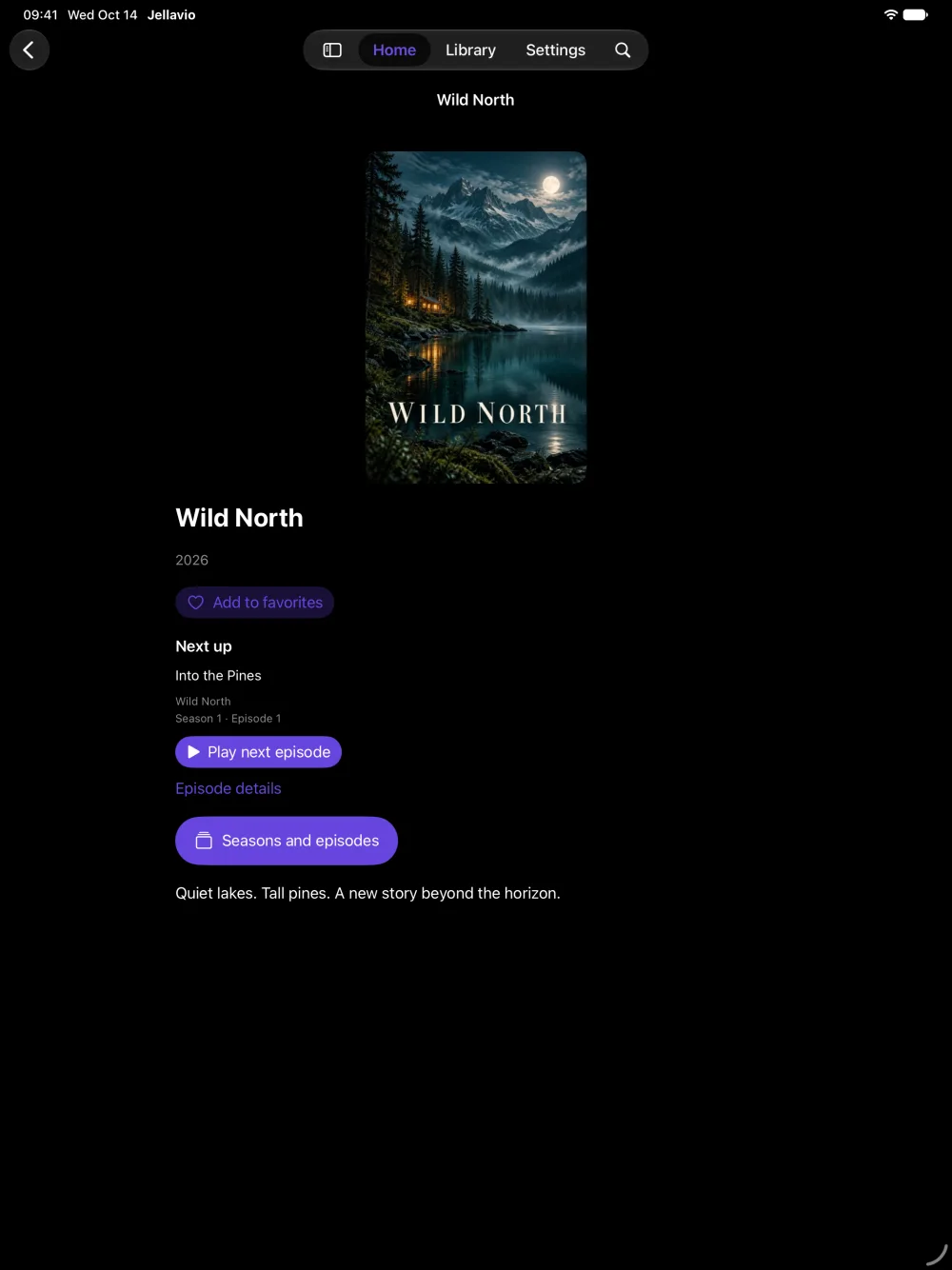
While connected to Wi-Fi, open a movie or an individual episode. For a series, open Seasons and episodes to choose one. On the title’s detail page, tap Download original file. Choose an eligible source if prompted, then wait for the download to finish before you leave. Keep Jellavio open if the download pauses in the background.
Play from Downloads
Open the Downloads tab and select the saved title. When the iPad can’t reach the server, Jellavio can show your downloaded library. Before you travel, switch on Airplane Mode, turn off Wi-Fi if it stays on, and start the title to check that it plays.
Which files work offline?
The original file must be MP4 with H.264 video and one AAC stereo audio track. Jellavio saves the original file, so if it requires transcoding to play, choose another source. Compatible external SRT and WebVTT subtitles can be saved. If a download is unavailable, check both the file format and the account’s download permission.
What’s free and what requires Pro?
Streaming, browsing and search with one saved Jellyfin account are free. Pro adds downloads and offline playback, multiple saved accounts and automatic next-episode playback. Jellavio is also available on iPhone, Mac, and Apple TV. This guide shows the iPad workflow.